Auction
Overview
This guide explains how to use Spot Auctions in the TMS to quickly find transporters for your immediate shipping needs and get competitive bids.
A Spot Auction is a fast and efficient way to find transporters for a specific. You provide the shipment details (origin, destination, truck type, etc.), and transporters submit bids. You then choose the best bid that suits your needs.
Accessing Spot Auctions
- From the left navigation go to Auction and select Spot Auction.
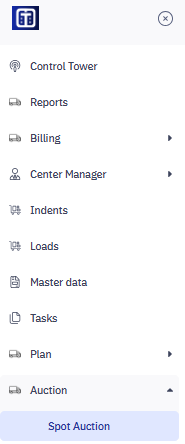
2. This opens the Spot Auction page.
Viewing Spot Auction Details
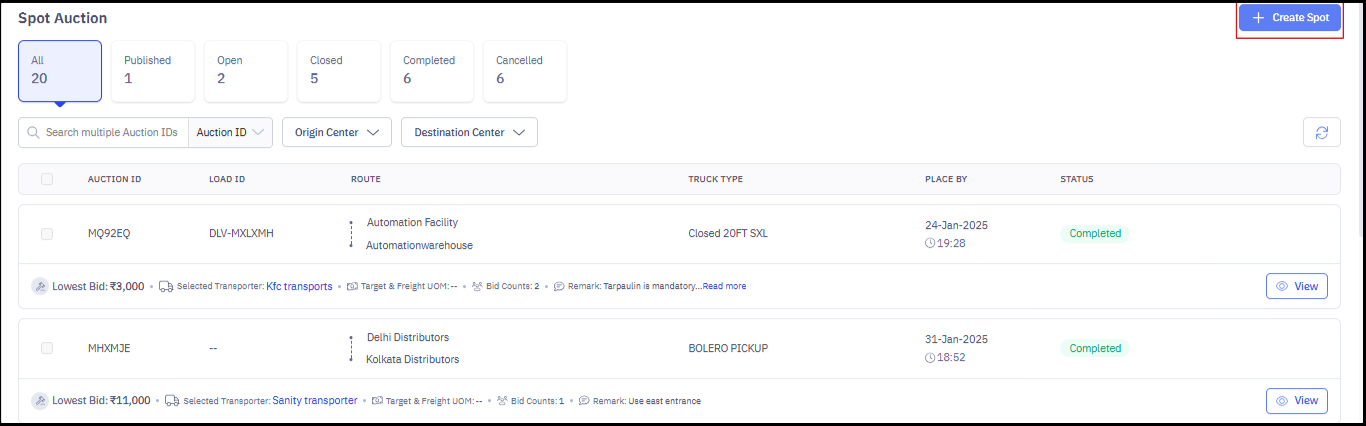
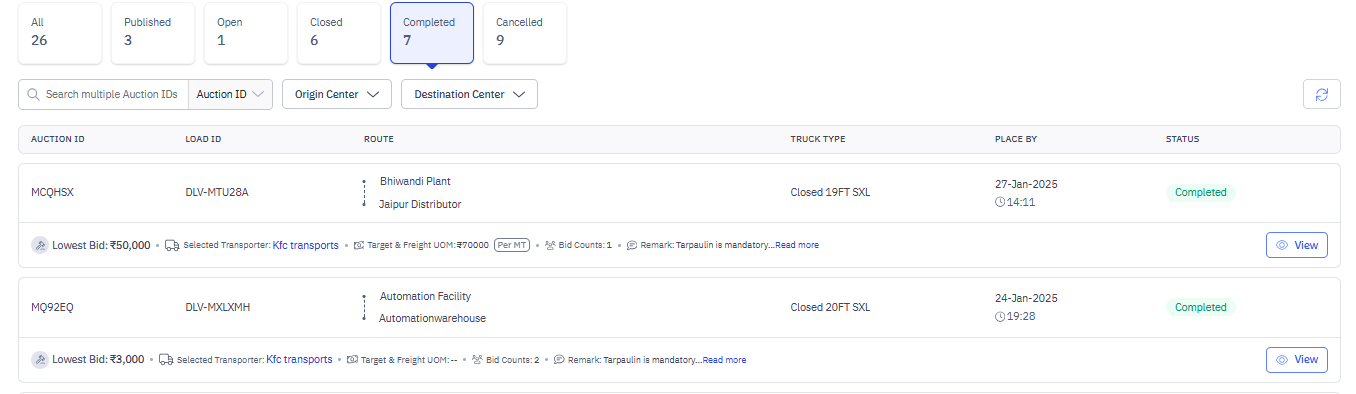
The Spot Auction page lists current and past spot auctions and their details. The table shows:
- AUCTION ID: A unique identifier for the auction.
- LOAD ID: The ID of the load being shipped (if applicable).
- ROUTE: The origin and destination of the shipment.
- TRUCK TYPE: The required truck type.
- PLACE BY: The date and time the auction was created.
- STATUS: The current status of the auction.
- Lowest Bid: The current lowest bid (if any).
- Selected Transporter: The selected transporter (for completed auctions).
- Target & Freight: Additional details about the target delivery and freight.
- Remarks: Any special instructions.
- View: Click this to see the full auction details.
Filtering Auctions by Status
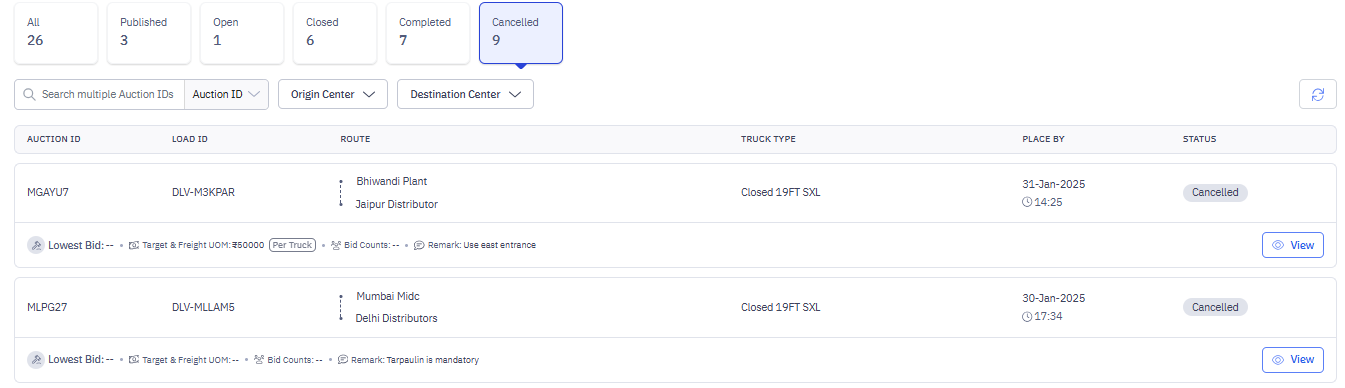
You can view and filter auctions based on their current status by using the tabs at the top (All, Published, Open, Closed, Completed, Cancelled) to filter the list:
- All: Shows all auctions.
- Published: Auctions created but not yet open for bidding.
- Open: Auctions currently accepting bids.
- Closed: Bidding has ended, but a transporter hasn't been selected.
- Completed: A transporter has been selected, and the shipment is complete.
- Cancelled: Auctions that have been cancelled.

You can search for auctions using its specific auction ID to get your auction details faster.
- Search for Auctions: Use the "Search multiple Auction IDs" box to find specific auctions by their ID.
- Auction List: The main part of the page lists the auctions, showing:
- AUCTION ID: A unique identifier for the auction.
- LOAD ID: The ID of the load being shipped (if applicable).
- ROUTE: The origin and destination of the shipment.
- TRUCK TYPE: The required truck type.
- PLACE BY: The date and time the auction was created.
- STATUS: The current status of the auction.
- Lowest Bid: The current lowest bid (if any).
- Selected Transporter: The selected transporter (for completed auctions).
- Target & Freight: Additional details about the target delivery and freight.
- Remarks: Any special instructions.
- View: Click this to see the full auction details.
Creating a New Spot Auction
To create a New Spot Auction, follow these steps:
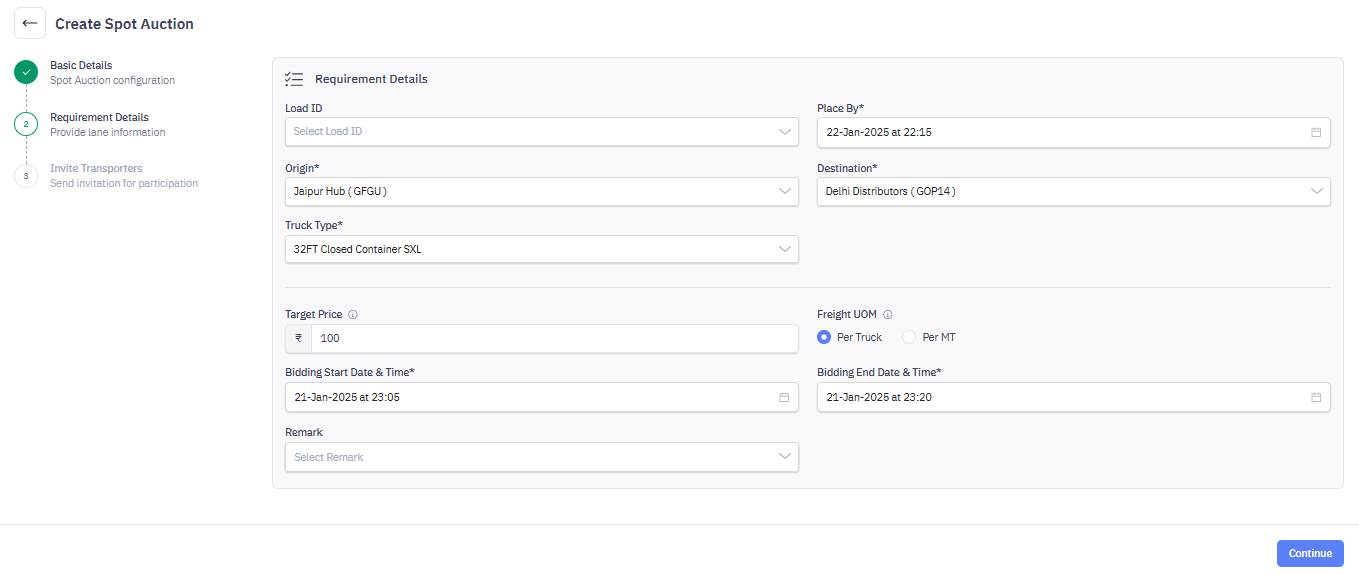
- On the Spot Auction page, click + Create Spot Auction.
- This opens the Spot Auction page.
- In Basic Details, configure the auction settings.
- Fixed Rate Applicable: Choose whether to use a fixed rate ("Yes") or allow bidding ("No").
- Yes: You set the price; transporters accept or decline.
- No: Transporters submit bids.
Info: Load is assigned at a set rate without bidding, requiring transporter acceptance of the shipper's target price.
- Bid Decrement (If "Fixed Rate Applicable" is "No"): Enter the minimum amount bids can be lowered by (e.g., ₹100).
Info: Specifies the decrement value for bid revisions by transporter during the bidding process.
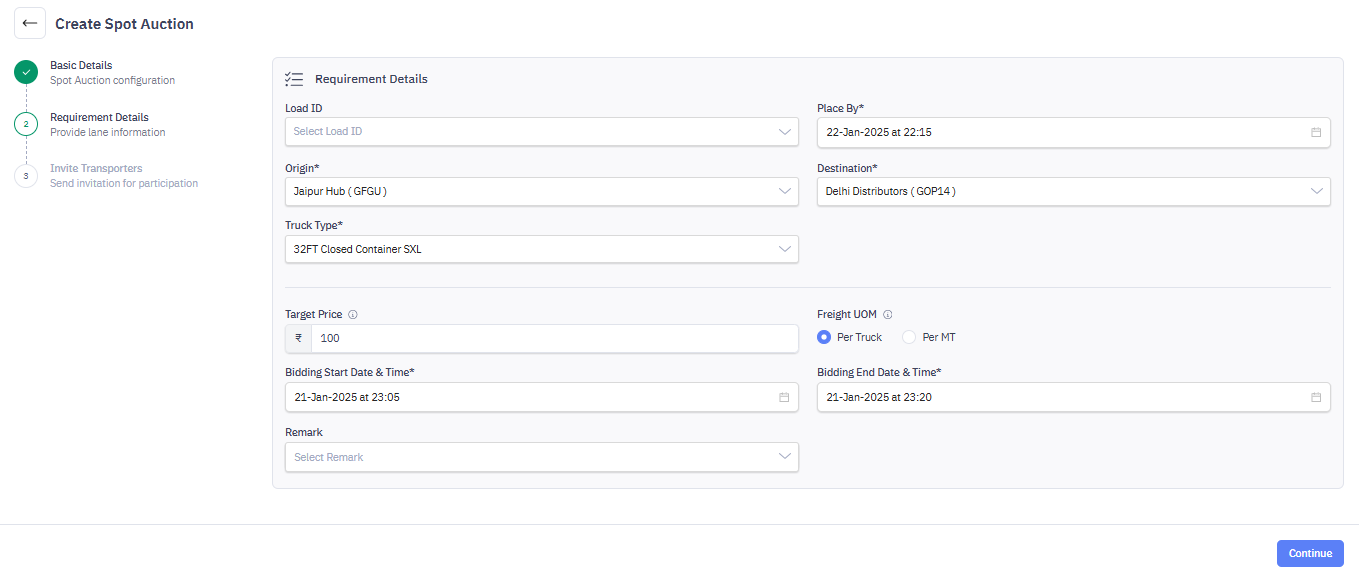
4. In Requirement Details (provide Shipment Information), specify the shipment details:

- Load ID (Optional): Select a Load ID if this auction is linked to an existing load.
- Place By: Select the date and time you need a transporter confirmed.
- Origin: Select the shipment's starting location.
- Destination: Select the shipment's delivery location.
- Truck Type: Select the required truck type.
- Target Price (Optional): Enter your target price.
- Freight UOM: Select the unit of measure for the freight (e.g., Per Truck, Per MT).
- Bidding Start Date & Time: Select when bidding opens.
- Bidding End Date & Time: Select when bidding closes.
- Remark (Optional): Add any special instructions.
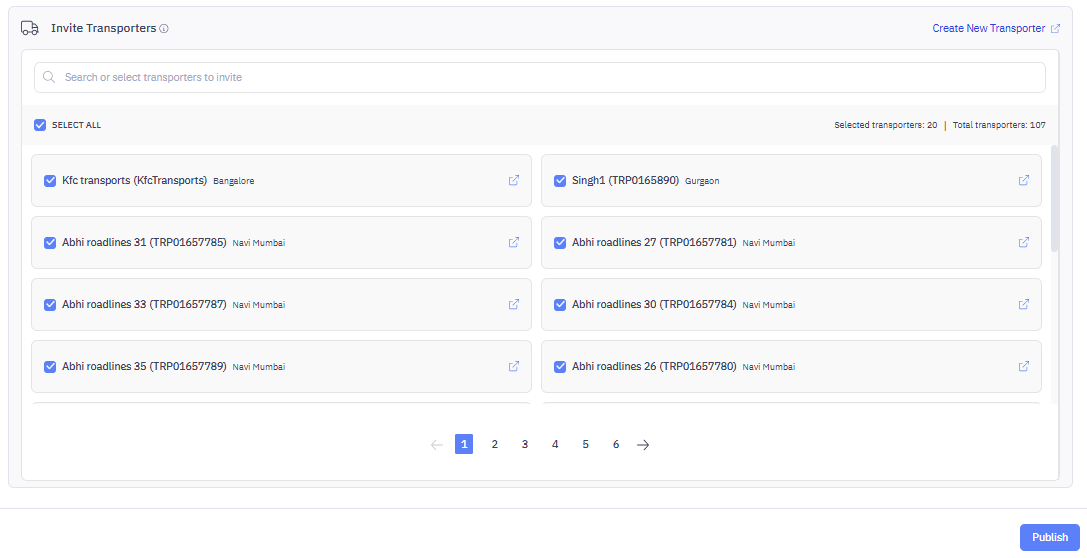
5. Invite Transporters (Optional): Choose which transporters to invite:
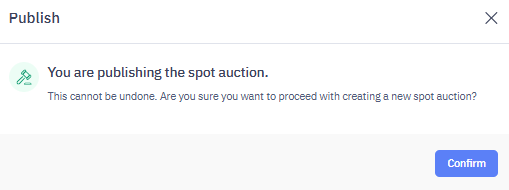
6. Publish: Click Confirm to make the auction live.
7. The next step is to publish the auction request.
8. Click Confirm to create a new spot auction with transporters.
Important: Invited Transporters will be notified on their WhatsApp about the bidding quotes and all the further communication will be done offline. After they accept, revise the bidding prices.
9. After the auction request is sent, it will appear in the Published tab.
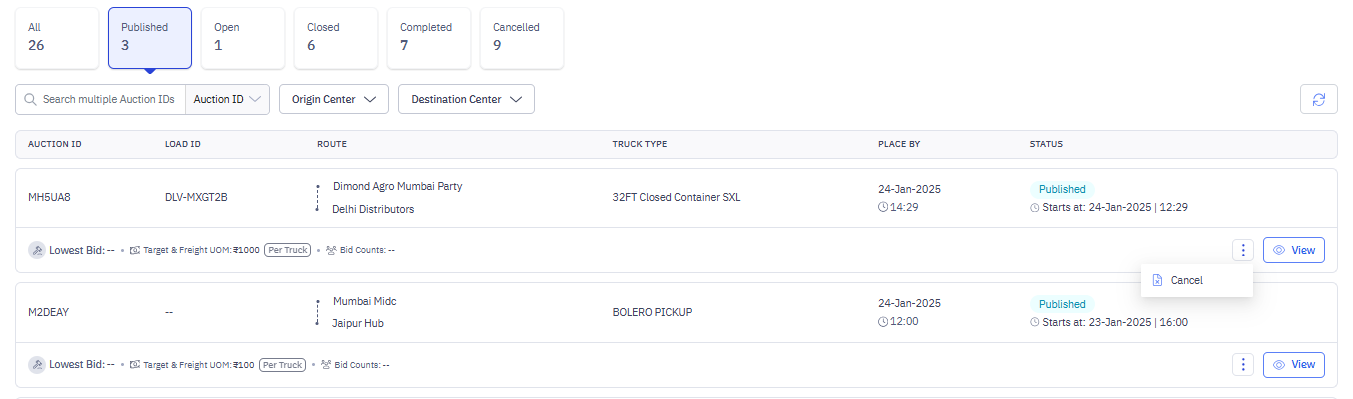
10. On the View page, you again have the option to Cancel this bidding.
11. Go back to the Published tab. If you want to proceed with the bidding.
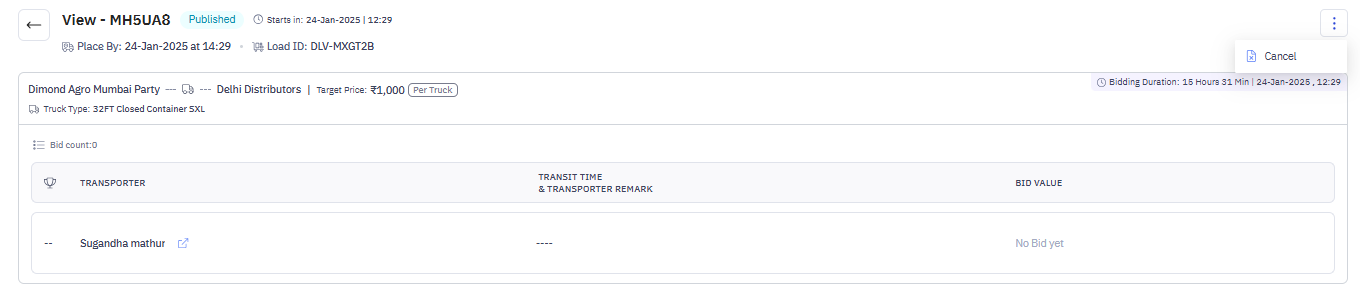
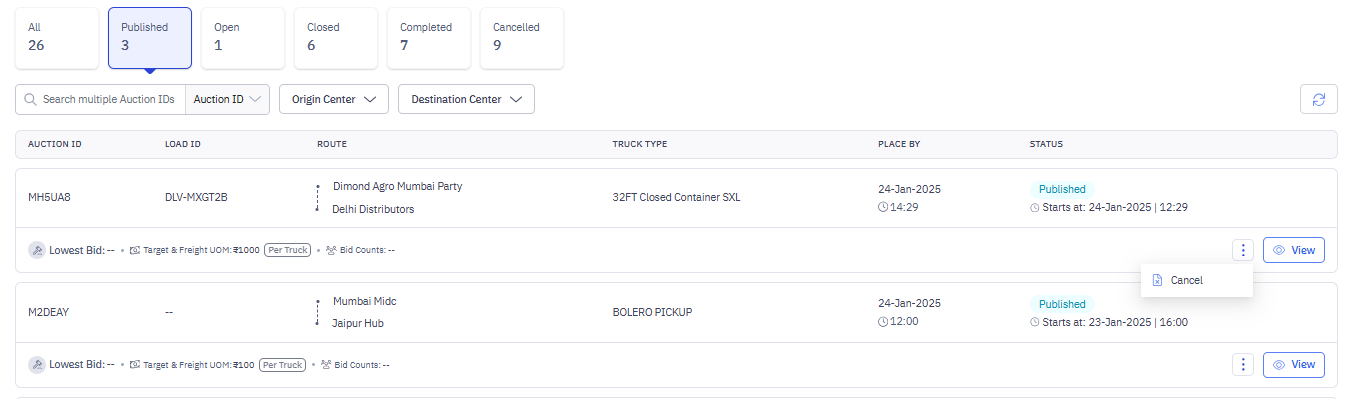
Important: Once the bid start date and time starts, the WhatsApp notifications and message will be sent to Transporters WhatsApp.
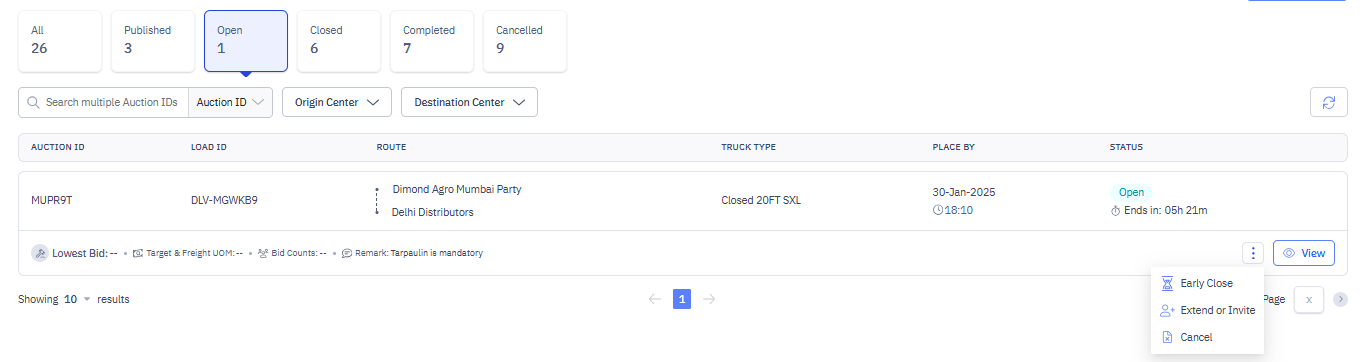
12. When the notifications will be sent to transporters, the load will move to the Open tab. From the Open tab, you also have following options to choose:
- Early Close: To close the auction early.
- Extend Invite: To extend the invite to more transporters.
- Cancel: To cancel the auction.
13. If you want to skip these options, you can move to the Closed tab to view all the bids that have received the communications from transporters. You can accept a bid here or cancel it by clicking on three dots.
13. If you want to skip these options, you can move to the Closed tab to view all the bids that have received the communications from transporters. You can accept a bid here or cancel it by clicking on three dots.
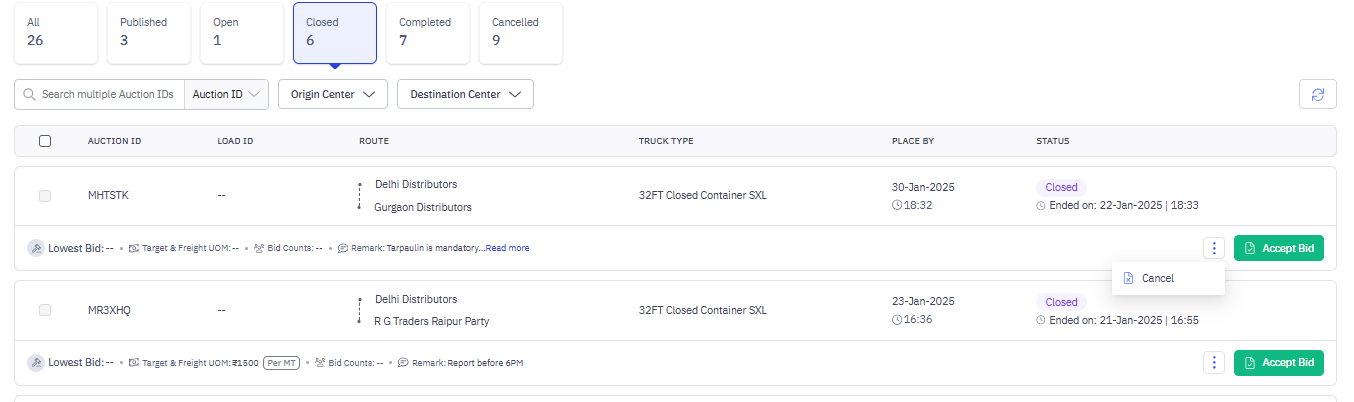
14. After you accept the bid, it will move to the Completed tab that determines your bid is completed. You can view all the completed bids in the Completed tab.
15. Next move to the Cancelled tab to view all the cancelled bids.