
Load
What is load?
A load is a shipment that needs to be transported from one place to another. It contains all the information needed to move the goods—like the pickup and drop-off locations, type of truck, transporter details, and delivery time.
In the TMS, each load represents one planned shipment. You can create a single load for small shipments or multiple loads for larger or repeated movements.
Example: If a truck carries boxes from a warehouse to a store, that delivery is one load.
How load module works?
The Load module in the Transportation Management System (TMS) helps you plan, manage, and track the movement of goods.
It brings all load-related tasks into one place, so you can easily create loads, assign transporters, and follow shipments from start to finish.
Whether you’re a shipper, warehouse manager, or fleet manager, the Load module helps you:
- Create and manage loads: Add shipment details, choose a transporter, and keep track of each load’s status.
- Track load progress: See where your shipment is in real time and get alerts if something goes wrong.
- Improve efficiency: Use tools that help you plan better routes, save costs, and meet delivery deadlines.
- Optimize load efficiency: Leverage planning and routing tools to ensure that the transportation of goods is cost-effective and meets deadlines.
Accessing Load
- From the left navigation, go to Load.
- This opens the Load screen.

Creating FTL Loads (Full Truck Load)
You can create a single load for small shipments or create bulk load for larger shipments. The below section helps you understand the load creation process step-by-step for the single load.
There are two types of load creation:
1. Single Load
2. Bulk Load
1. Single Load Creation
Creating a single load involves manually entering the details of one shipment at a time into the TMS. This is a straightforward process where you enter all the necessary information for that specific load, such as:
- Shipper and receiver details
- Product or goods being shipped
- Transport vehicle assignment
- Route and delivery details
- Special handling instructions (if any)
This approach is typically used for smaller, one-off shipments or when there is no need for large-scale data entry. It is often quicker and easier for users managing a few loads at a time or handling customized shipments with unique requirements.
When to Use:
- When you need to create a load for a single shipment.
- For smaller or irregular shipments.
- When specific details are required for individual load.

Steps to Create a Single Load:
- From the left navigation menu, select Load.
- On the right side of the Load screen, click
to create a single load for your shipment.
- Enter the details for the service type, route details, truck type, additional details like dispatch date and time.

4. Add the additional detail and click Submit.

5. A confirmation message will appear. Refresh the page to view the new load.

Created loads will appear in the To allocate tab. After the load is created, you will allocate contracts to the transporter.
Allocating Load
To allocate the load, follow the below steps:
- If you know the market rates, then continue with allocating contract to transporters. Click the Indent button.
To learn how to indent a load, refer to the Indent documentation.

Or,
- If you want to get competitive bids from multiple transporters, click the Send for Bidding button.
- Create and launch a spot auction.
- The load will remain in the To Allocate tab while the auction is live. To understand how to send a bid, refer to the Send for Bidding section.

To learn the steps to initiate a bid, refer to the Send for Bidding documentation.
Allocating Contracts
You can allocate contracts and then assign transporter, Or you can directly assign transporter and submit indent.
To allocate the contracts, follow the below steps:
1. Click Indent to allocate and assign the load to a contract.
2. Once you select a contract for allocating it to the transporter, it sends a request to the transporter for accepting or rejecting the contract.

Info:
More options:
Click on the selected load, you will see three more options will be enabled for you.
- Indent: You can click this Indent as well to allocate more than one load to the contract.
- Cancel Load: You can cancel this load.
- Clear Selection: You can undo the selection.

Assigning Transporter
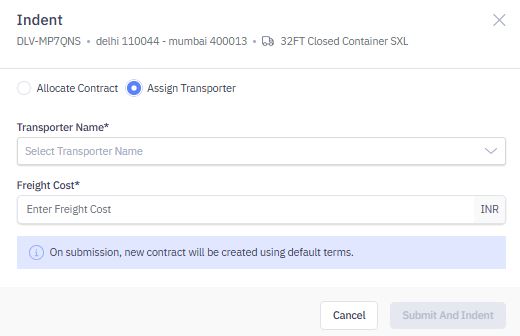
This allows you to directly assign transporter and create a new contract with default terms.
1. Click Assign Transporter and select the Transporter Name and Freight Cost.
2. Click Submit and Indent.
After you allocate and assign contract to the transporter, you can track the load’s progress in the Allocated tab. Now transporter is informed about your request, he will take the required action in the Transporter portal.
Info:
- WM/DM can see list of loads expected to pick materials from their facility in Allocated tab and their current status:
- Requested - Load is assigned to the transporter
- Accepted - Transporter has agreed to place the vehicle
- Assigned - Transporter has provided the vehicle details

2. Bulk Load Upload
A bulk load upload allows users to upload multiple loads at once by importing data from an external source, such as a spreadsheet (CSV). This is an efficient way to manage large volumes of shipments. Bulk uploads allow you to quickly add several loads without manually entering each shipment's information one by one.
To perform a bulk load upload, you'll typically:
- Prepare a file with all the necessary load data (e.g., load number, shipment details, route information).
- Import the file into the TMS, which automatically creates multiple loads based on the provided data.
This feature is particularly useful for organizations handling large numbers of shipments at once or when there are repeated, bulk data uploads from other systems.
When to Use:
- When handling multiple loads at once.
- For large shipments or recurring shipments that can be grouped.
- When integrating data from external sources to automate the load creation process.
To create a bulk upload, follow the below steps:
- From the Load screen, click
to create a bulk load.
- Download the template to understand how to fill in load details.
- Upload a CSV file with all the shipment data.

4. After uploading, your load details will appear in the To Allocate tab.
5. Follow the same steps as for Single Load Creation to allocate and manage the bulk loads
Creating LTL Manifest
LTL (Less-Than-Truckload) shipping is used when the freight does not require a full truck. This guide walks you through the step-by-step process of creating an LTL manifest in TransportOne.
After you indent and create a load, you manifest it to hand it over to the transporter. During this process, you update key information such as invoices, pickup type, and point-of-contact details. Once you submit the manifest, the system assigns the load to the selected transporter for pickup.
Step 1: Select or Create a Load
1. After indenting a load, navigate to the Load screen.
2. Either create a new load or select an existing load you wish to manifest.

3. You can also create a load directly from the Indent screen if you have the required permissions.
Step 2: Click Manifest
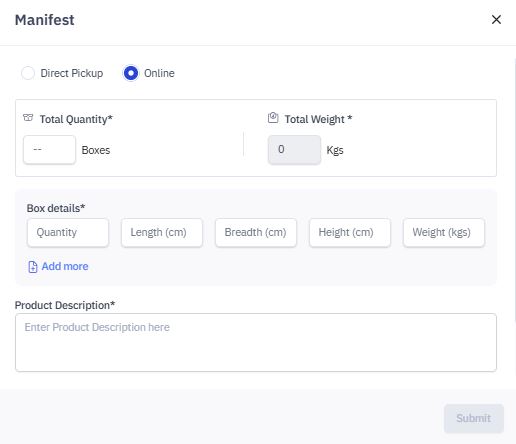
- On the selected load, click the Manifest button.
Step 3: Choose the Pickup Type
You’ll be prompted to select one of the following pickup types:
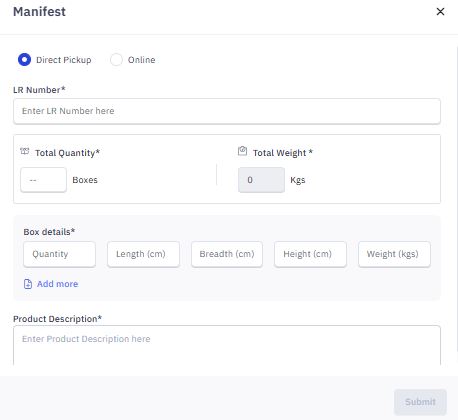
- Direct Pickup
The pickup is coordinated manually (e.g., via phone or message).
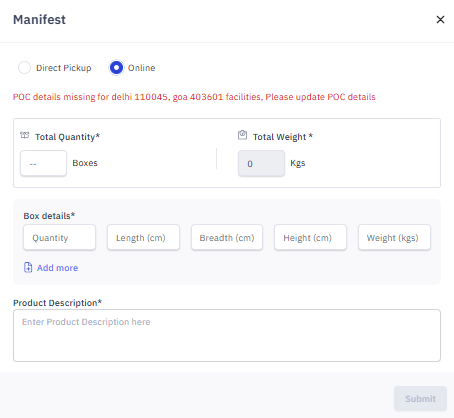
- Online Pickup
The pickup is managed through the TMS system.
Important: Ensure the following are completed before initiating an online pickup:
- Invoices: If not available, go back and upload them.
- POC (Point of Contact) Details: Missing details (e.g., for locations like Delhi 110045 or Goa 403601) must be updated.
Step 4: Upload Invoices & Update POC Details
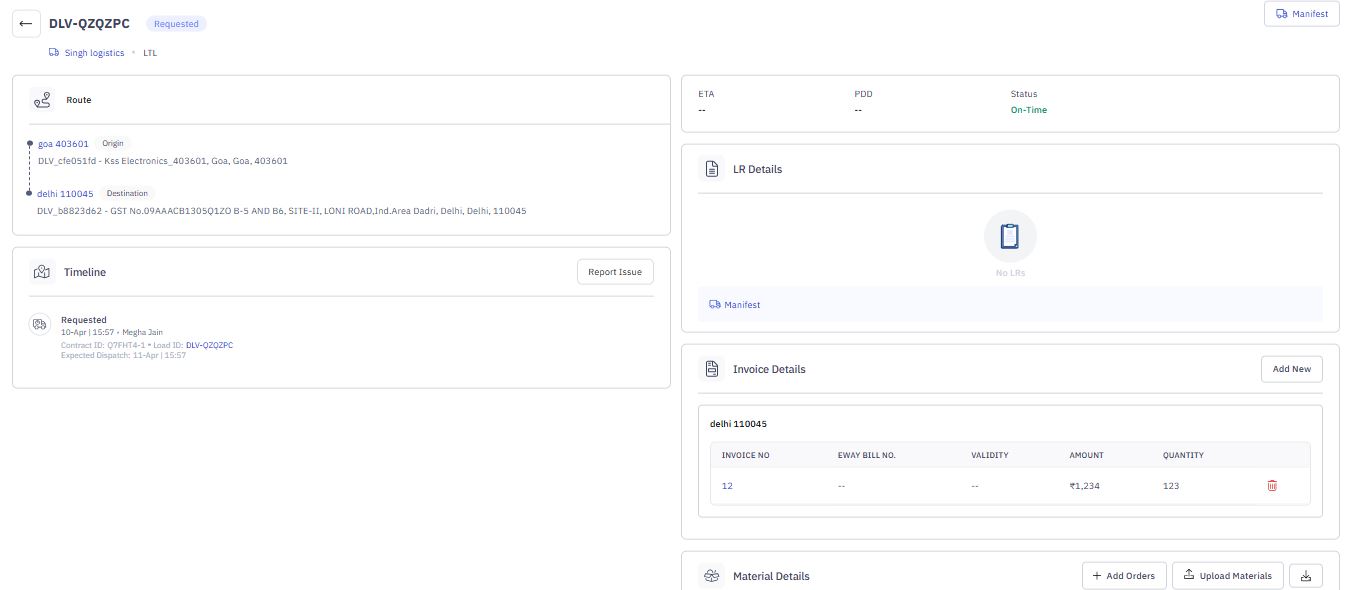
- Return to the Indent or Load screen. (depending on the permission you have to access modules).
- Upload missing invoices and update POC details as needed.
- Once updated, return to the Manifest screen.

Step 5: View Transporter Recommendations
- Scroll down to see transporter recommendations.
- Click the refresh icon to view updated suggestions in the dropdown.

Step 6: Submit the Manifest
- Click Submit to complete the manifest process.
What Happens Next?
Once manifested, the load:
- Moves to the Allocated tab in the Load app, and is assigned to the selected transporter, and
- Shows Requested status in the Indent app, indicating the load has been sent to the transporter for pickup.
The transporter will then accept or reject the request.
To continue from here, follow the steps outlined in the Indent module:
What happens after a transporter accepts the load?
Uploading Orders
- From the Loads screen, you can upload bulk orders.
- Click
button. You need to upload an order file in which your order details are present. We have provided the template for you to understand how to fill in the order details.
- Orders can also be directly manifested in the TMS through an API integration with your ERP. To proceed for manual upload, Click Download Template.
- Open the downloaded CSV file.
- Fill in the necessary order details, such as Order ID, Destination, Load Type, and Dispatch Date.
- Save the completed file in CSV format.
- Click Upload a file option to upload a file or you can simply drag and drop it.
- Click
to proceed to the next step.

- The file will then be processed, and a pop-up message will be displayed, allowing you to view your file's progress. Click View Details to check the progress of your file.
- Go to Tasks module and refresh the page and your file status will be completed.

You have successfully uploaded the file. Now, you can initiate the plan to load.
9. Once an order is uploaded, you can start the shipment planning process. Refer to the Planning module documentation.
Managing Invoices
Add or upload invoices related to your shipments. This ensures all necessary financial records are tied to the corresponding indents. You can add invoice by various ways:
1. Upload Invoices from the Load screen, click Invoice Upload, see Upload Invoice section. Or,
2. Add invoices from the load ID detail page, see the Add Invoice section.
You can manage invoices-upload, add, edit, and delete invoices.
Uploading Invoice
From the Loads screen, you can upload invoices. To do so, follow these steps:
- Click
.
- Click Download Template to understand how you will fill the invoice information.
- Fill in the required information as per the template format.
- Save the file in CSV.
- Upload the file.
- Click Process.

7. The invoice will be uploaded and you can view the uploaded invoice on the details page.
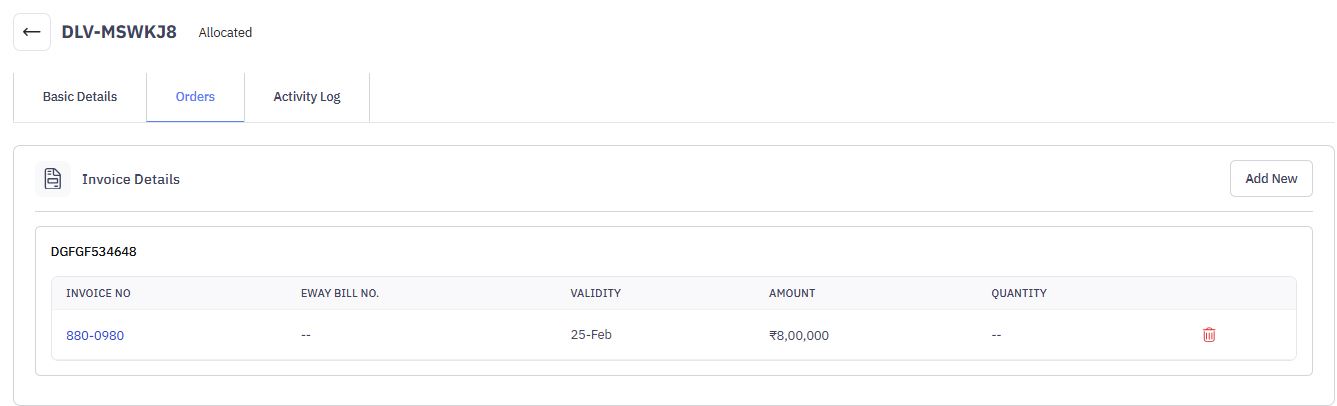
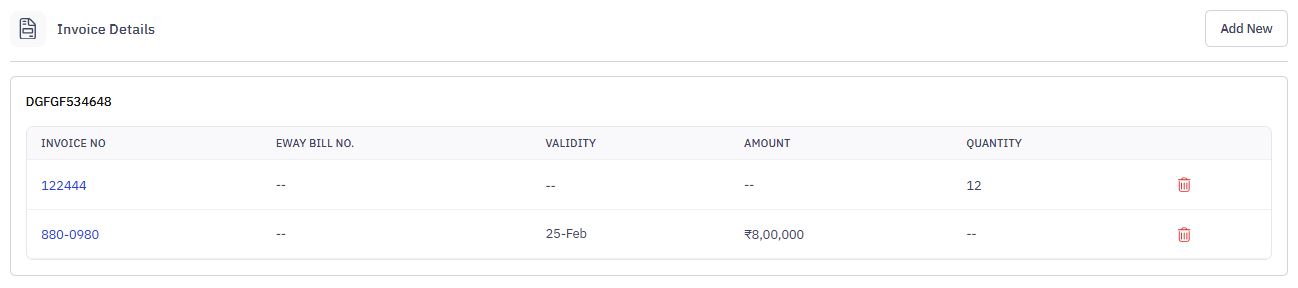
Adding Invoice
To add invoice, follow the below steps:
1. Go the load details page from the Allocated tab.
2. Select the Load ID you wish to add the invoice for.

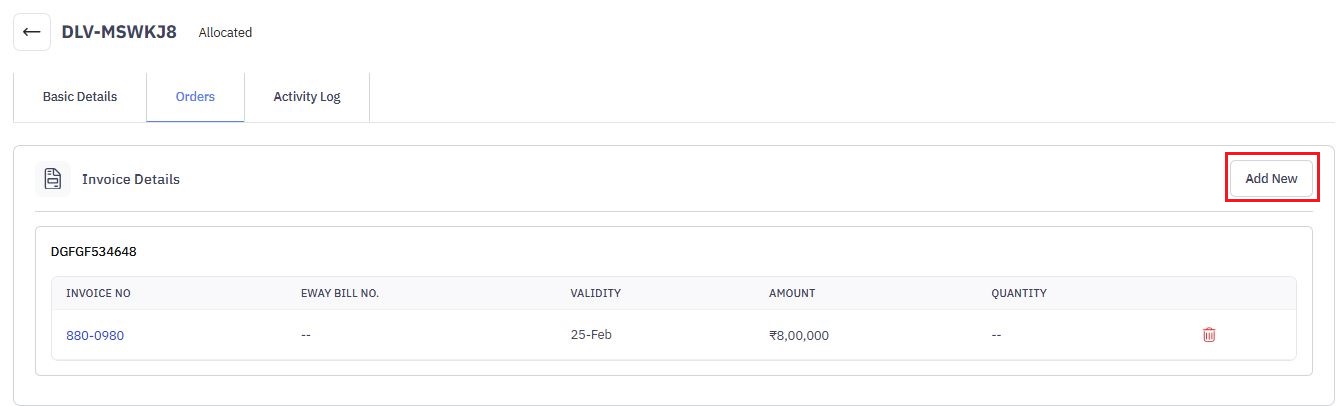
3. On the details page, go to Orders tab, click Add New button.
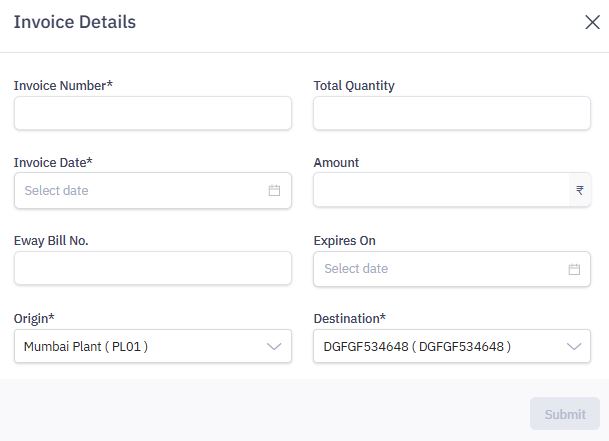
4. Enter the required details and click Submit.
5. The newly added invoice will appear on the details page.
Editing Invoice
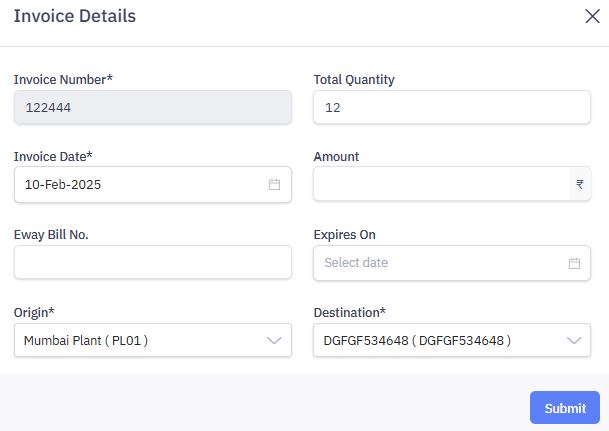
1. To edit invoice details, click on the invoice you wish to edit the details for.
2. Edit the details and click Submit.
Deleting Invoice
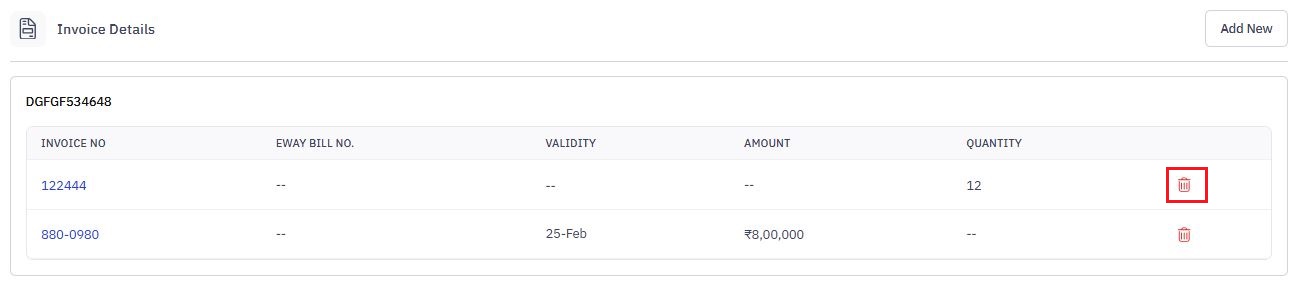
To delete invoice, click delete icon.
Cancelling Loads
All the cancelled loads will be visible here.
1. From the To allocate tab, click on the selected load that you wish to cancel it.
2. Click Cancel, you selected load will be cancelled.
Clear Selection
1. From the To Allocate tab, click on the selected load to clear the selection. This will undo your selection.
Managing Transporter and Contracts
You can manage transporters and contracts assigned to them.
Edit Transporter and Contract
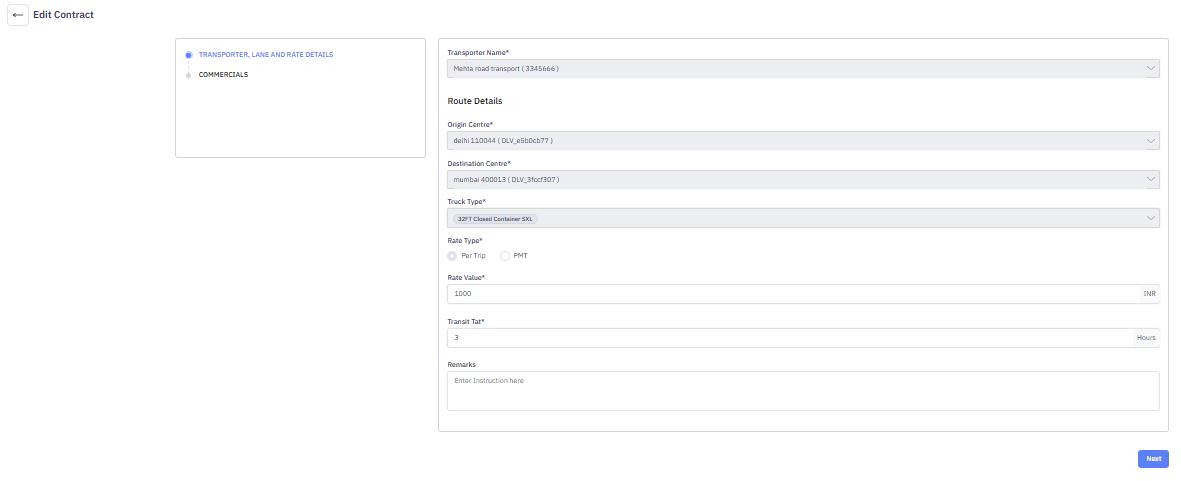
1. In the Allocated tab, select the transporter whose vehicle details you want to edit under the Transporter and Contact ID column.

2. On the details page, click the Edit button.
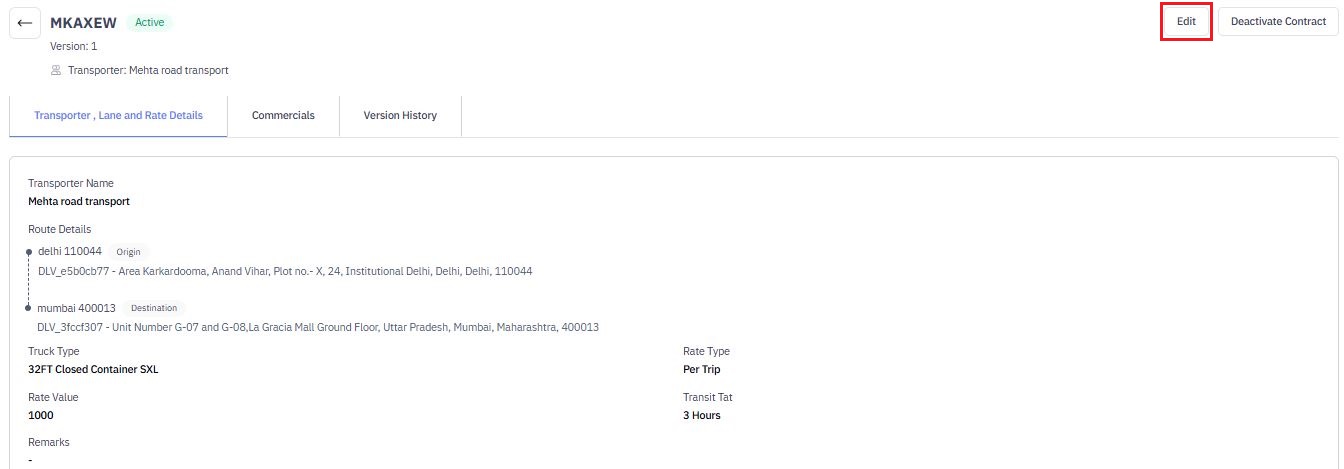
3. On the edit page, modify the following details as needed:
- Transporter Name
- Route Details
- Origin
- Destination
- Truck Type
- Rate Type
- Rate Value
- Transit TAT
4. Enter remarks if any, otherwise click Next.
5. Modify Commercial Charges. On the Commercials section, update the applicable charges:
- Loading and Unloading Charges – Choose between Flat Amount, Reimbursed on Actual, or Not Applicable.
- Detention Loading and Unloading Charges – Configure charges based on day-wise slabs or mark them as Not Applicable.
To understand how slab works, check the section below. - Multi-Point Charges – Set charges Per KM, Per Point, or Not Applicable.
- Delay Penalty – Define penalty charges using day-wise slabs or mark them as Not Applicable.
- Max Damage Amount – Enter the maximum damage claim amount.
- Fuel Price Hike Applicability – Select Yes or No.
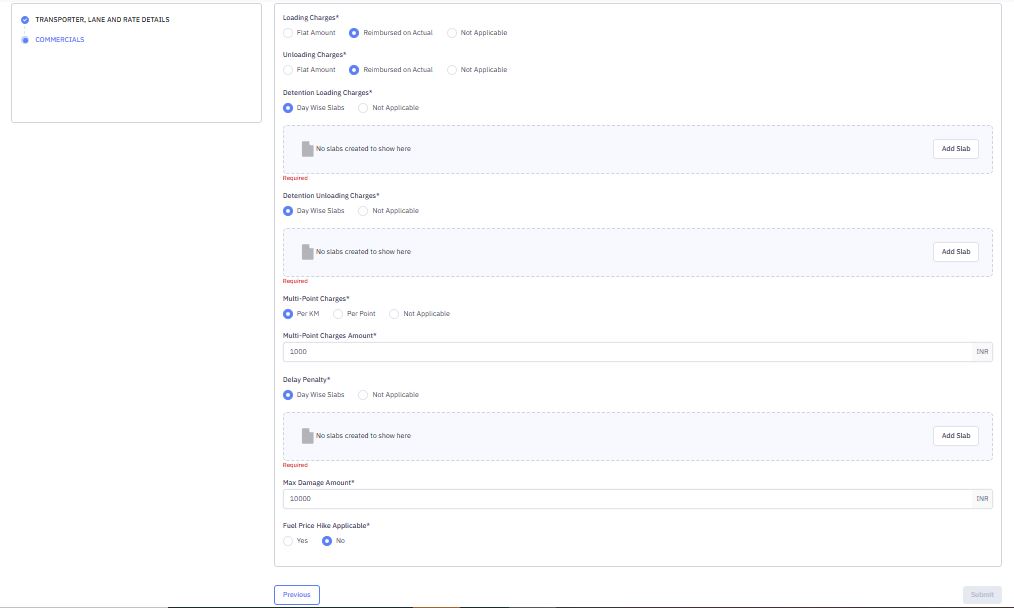
Info: A slab is a predefined range used to calculate charges based on specific conditions. It allows for dynamic pricing based on varying factors. For example:
- Detention Charges – Charges increase depending on the number of days the vehicle is detained.
- Delay Penalty – Penalty charges vary based on the number of delayed days.
How to Add a Slab?
- Click Add Slab in the respective charge section (e.g., Detention Charges, Delay Penalty).
- In the Add Slabs popup:
- Select the Truck Type.
- Define the Day Range (e.g., 0 to X days).
- Enter the Amount in INR.
- Click + Add Day Range if multiple slabs are needed.
- Click Save to apply the slab.
- Once all modifications are made, click Submit to save the changes.