
Manage Rates
Introduction
Rate Master helps you manage and store transport rates for different routes, ensuring accurate freight cost calculation. It allows you to:
- Set up rates for different truck types and routes.
- Manage contract and spot rates easily.
- Download and upload rates in bulk for efficiency.
If you are responsible for maintaining freight rates in the system, this guide will help you navigate Rate Master smoothly.
Accessing Rate Master
To access Rate Master:
- Go to the Master Data section in your dashboard.
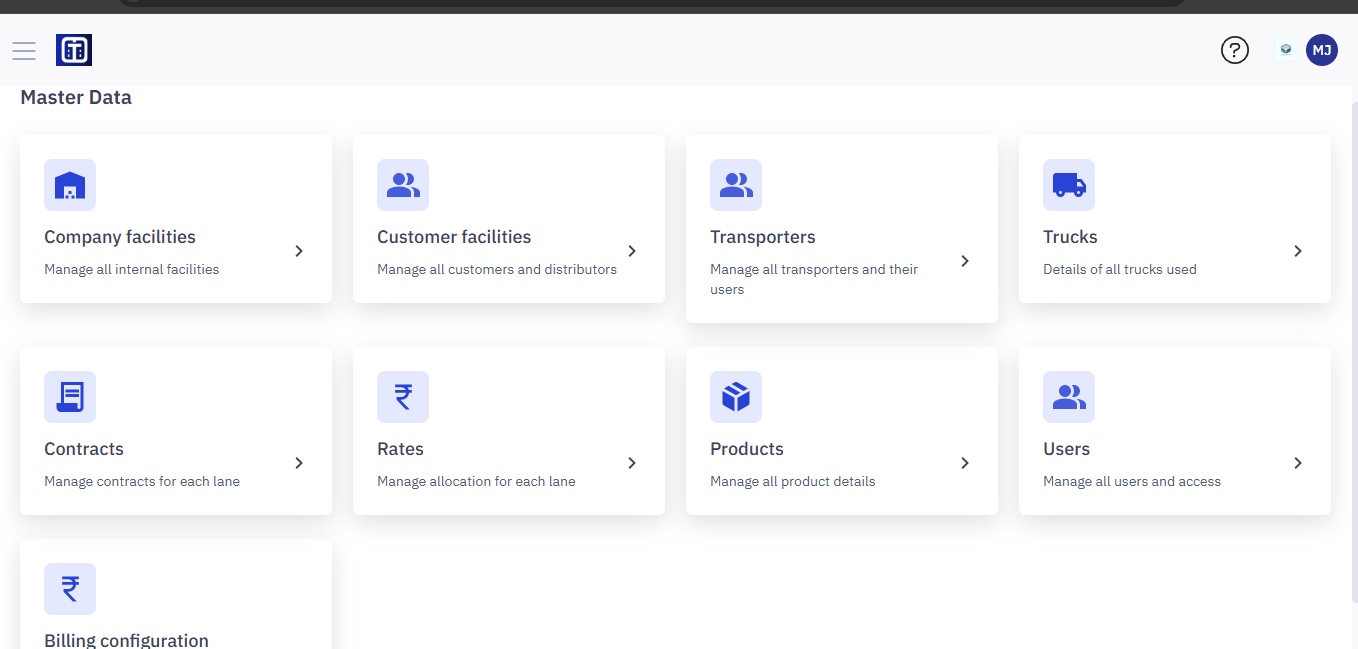
Note: Ensure you read the instructions before adding and managing rate master data, refer to the section Master Data : Key Details for All Submodules for important information about adding entries and ERP integration.
2. Click on Rate Master.
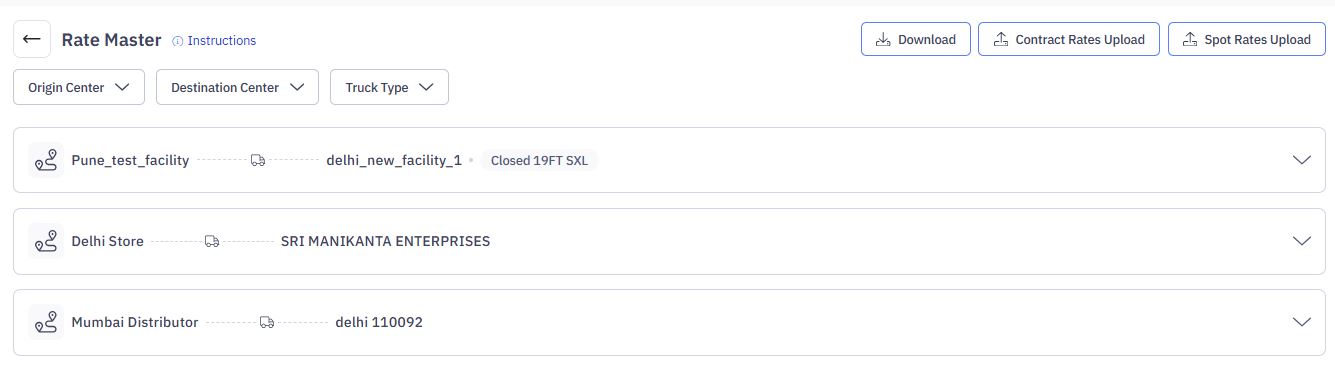
Once inside, you’ll see a list of predefined transport rates based on origin, destination, and truck type.
Searching for the Rates
Using Filters
You can quickly search for rates using filters:
- Origin Center – Select the starting location.
- Destination Center – Choose where the truck will deliver.
- Truck Type – Narrow results by vehicle type (e.g., 19FT SXL, 32FT Container).
Apply filters to see only the rates relevant to your route and truck type.
Understanding the Rate Details
Each rate entry includes:
- Route: The transport path (e.g., Egmore → Indiranagar Depot).
- Truck Type: Specifies the vehicle used.
Clicking a rate entry expands it to show detailed information about the rate, including:
| Field | Description |
|---|---|
| Transporter | The assigned transport company. |
| Rate | Cost per trip for the selected truck type. |
| Multi-Point Charges | Additional per-kilometer charges (if applicable). |
| Wallet Share (%) | Percentage of load allocation to the transporter. |
| Transit Days | Estimated delivery time. |
| Valid From | The start date for the rate. |
| Valid To | The expiry date for the rate. |
By checking these details, you can confirm the right transporter, pricing, and validity period before booking shipments.
Managing Rates
1. Downloading Rates
Need to review existing rates in a spreadsheet?
- Click the
button.
- The system will generate a file containing all active rate entries.
After you download it, bulk download will be sent to your email ID.
This is useful for making bulk updates or keeping records.
2. Uploading Rates
To upload new contract or spot rates:
- Click Contract Rates Upload (for long-term agreements) or Spot Rates Upload (for short-term rates).
- Download the rate template (if needed) to format data correctly.
- Fill in the required details and upload the file.
Once uploaded, the system will process and update the rates accordingly.
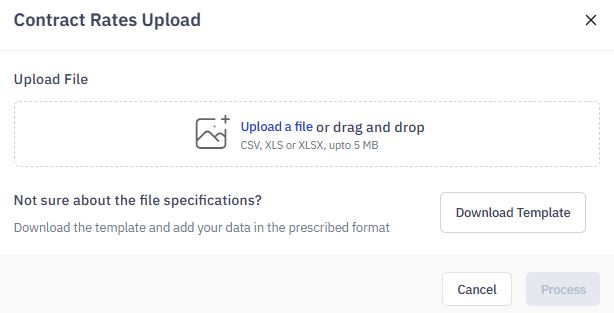
You can view the uploaded contracts in Task module. Select the Contracts Rate Upload Task Type from the dropdown.
4. Viewing each route rate details
You can view rate details of each route.
- Find the rate entry using filters.
- Click to expand the rate details.
- Click on the Transporter ID, the complete details page will be open.
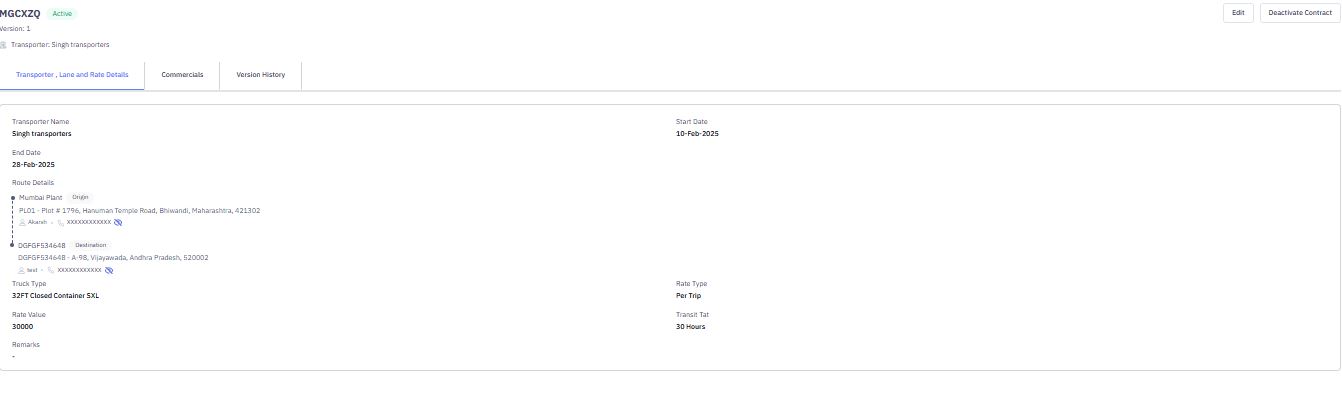
5. Editing or Deleting Rates
To modify an existing rate:
- Find the rate entry using filters.
- Click to expand the rate details.
- Click on the Transporter ID, the complete details page will be open.
- Click Edit and update the necessary fields.
- Save the changes.
To remove an outdated rate, use the Delete option (if enabled).