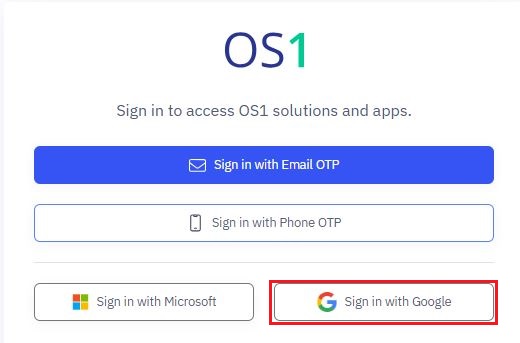
Sign in to TMS Portal
In this article, you'll learn how to sign in to the Transport Management System (TMS) and get started with your account.
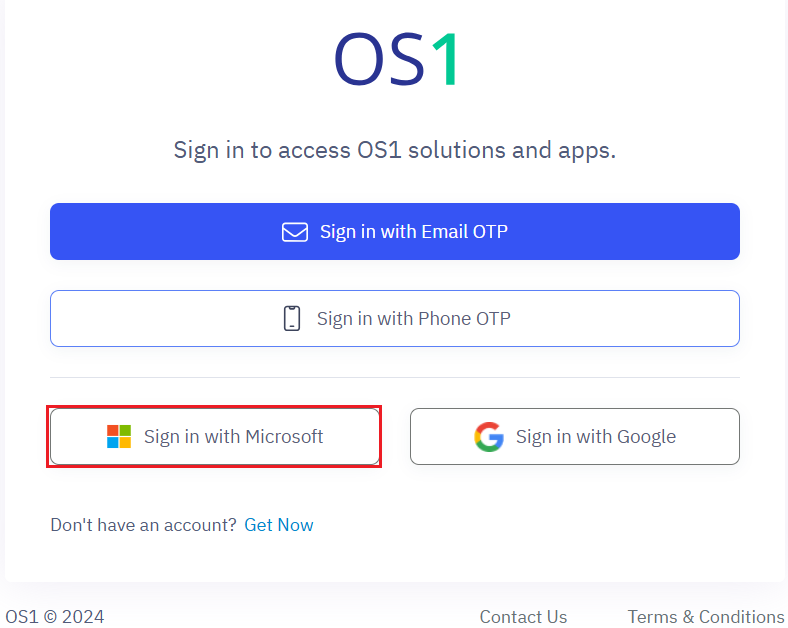
You can sign in to TransportOne Management System through your OS1 account securely using Single Sign-On (SSO) with Email OTP, Phone OTP, Microsoft, or Google. You can sign in using Single Sign-On (SSO). Choose one of the following methods:
Method 1: Sign in with Email OTP
- Navigate to the OS1 login page on your browser.
- Click Sign in with Email OTP.

3. Enter your registered email address and click Send OTP.
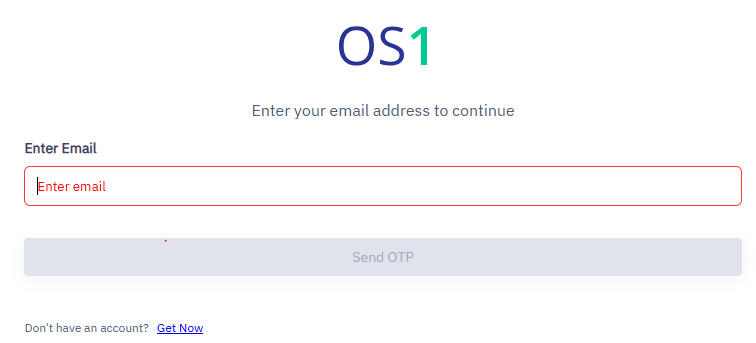
4. Click Send OTP. OTP will be send to your email ID.
5. Enter the code that you received in your email.

6. Click Login.
7. You will be logged in to the portal and the dashboard will appear.

Method 2: Sign in with Phone OTP.
- Click Sign in with Phone OTP.
- Enter your registered phone number and press Send OTP.
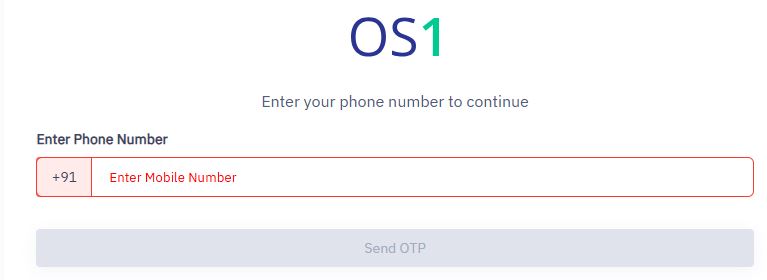
3. Check your SMS inbox for a One-Time Password (OTP).
4. Enter the code that you received in your email and press Login.
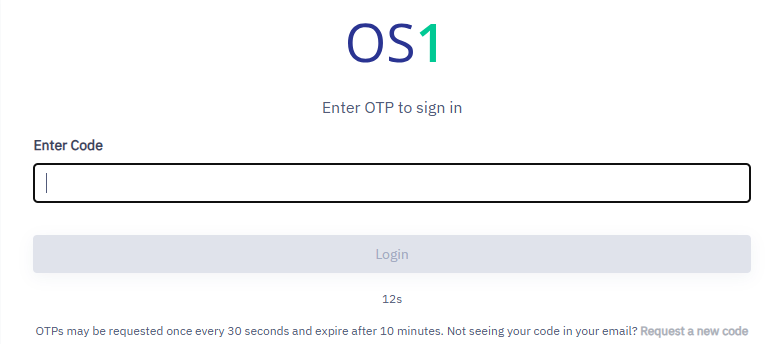
5. After you login to the portal, you will be redirected to the default page.
Method 3: Sign in with Microsoft
- Click Sign in with Microsoft.
- Select your Microsoft account if already added or you can add one.
- Enter your Microsoft account credentials.
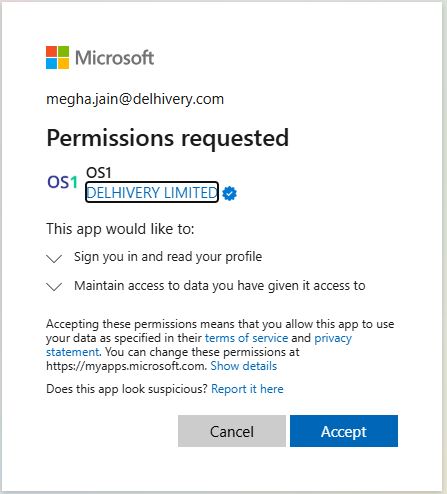
- Microsoft will ask you permissions to access the data. You can accept the permissions request.
- After you accept the permissions, you will be redirected to the TMS default dashboard page.

Method 4: Sign in with Google
- Click Sign in with Google.
- Log in using your Google account credentials.
- Upon successful login, you will be redirected to the TMS default dashboard.