
Tasks
Learn how to manage and track important tasks in the Tasks module to keep your operations running smoothly.
Overview
The Task Module in the Transporter Management System (TMS) allows users to track processing statuses and download processed files. This guide provides a step-by-step walkthrough of how to use the Task module effectively.
Accessing the Task Module
1. Log in to the TMS platform.
2. Navigate to the Tasks section from the main menu.
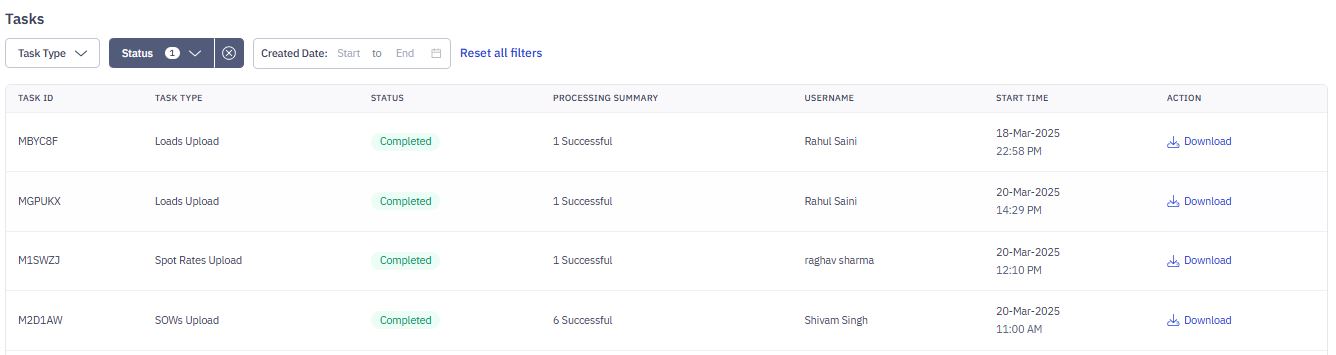
Task Listing
Upon accessing the Task Module, you will see a table displaying:
- Task ID: Unique identifier for each task.
- Task Type: Type of upload (e.g., Invoices Upload, Payments Upload, Contracts Upload).
- Status: Indicates task progress (e.g., Completed, Failed, In Progress, Completed with Errors).
- Processing Summary: Number of successful or failed records.
- Username: User who initiated the task.
- Start Time: Timestamp when the task started processing.
- Action: Option to download processed files.
Filtering Tasks
You can filter tasks using the available options:

1. Task Type Filter
- Click on the Task Type dropdown.
- Select a task type (e.g., Contract Rates Upload, Orders Upload, Spot Rates Upload).
- The list updates to display only the selected task type.
2. Status Filter
- Click on the Status dropdown.
- Choose one or more statuses:
- In Progress: Tasks that are currently being processed.
- Completed: Successfully processed tasks.
- Failed: Tasks that encountered errors.
- Completed With Errors: Tasks that processed partially with some failed records.
- The list updates accordingly.
3. Date Filter
- Click on Created Date and specify a start and end date.
- The list updates to show tasks within the selected date range.
Downloading Processed Files
- Locate the task you want to download.
- Click the Download link in the Action column.
- The processed file will be downloaded to your system.
