
Manifest LTL Loads in TransportOne (Less-Truck-Load)
LTL (Less-Than-Truckload) shipping is used when the freight does not require a full truck. This guide walks you through the step-by-step process of creating an LTL manifest in TransportOne.
After you indent and create a load, you manifest it to hand it over to the transporter. During this process, you update key information such as invoices, pickup type, and point-of-contact details. Once you submit the manifest, the system assigns the load to the selected transporter for pickup.
Creating an LTL Manifest
Step 1: Select or Create a Load
1. After indenting a load, navigate to the Load screen.
2. Either create a new load or select an existing load you wish to manifest.

3. You can also create a load directly from the Indent screen if you have the required permissions.
Step 2: Click Manifest
- On the selected load, click the Manifest button.
Step 3: Choose the Pickup Type
You’ll be prompted to select one of the following pickup types:
- Direct Pickup
The pickup is coordinated manually (e.g., via phone or message).
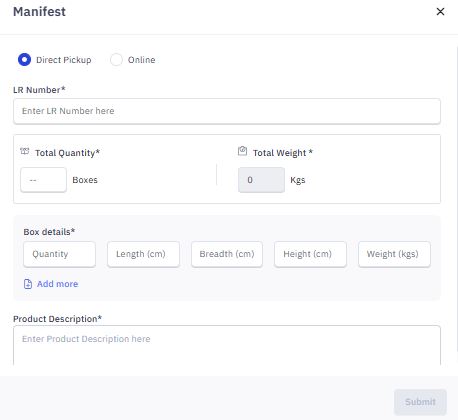
- Online Pickup
The pickup is managed through the TMS system.
Important: Ensure the following are completed before initiating an online pickup:
- Invoices: If not available, go back and upload them.
- POC (Point of Contact) Details: Missing details (e.g., for locations like Delhi 110045 or Goa 403601) must be updated.
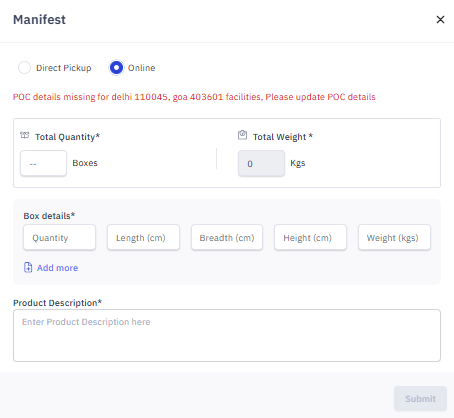
Step 4: Upload Invoices & Update POC Details
- Return to the Indent or Load screen. (depending on the permission you have to access modules).
- Upload missing invoices and update POC details as needed.
- Once updated, return to the Manifest screen.

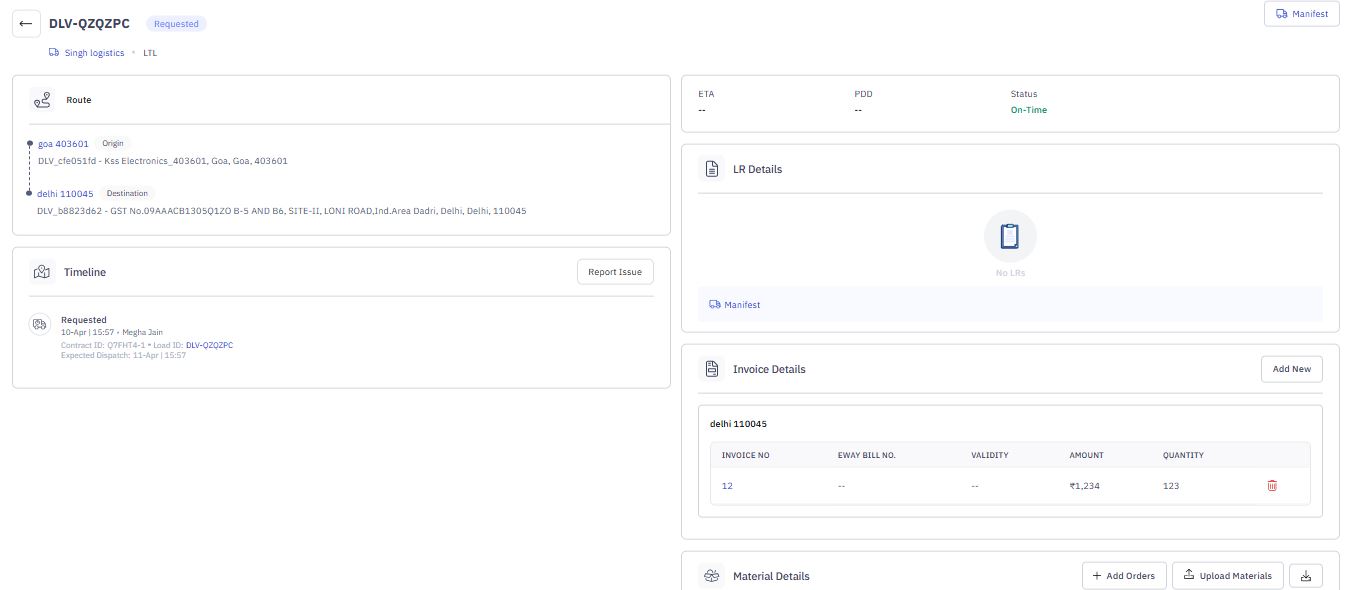
Step 5: View Transporter Recommendations
- Scroll down to see transporter recommendations.
- Click the refresh icon to view updated suggestions in the dropdown.

Step 6: Submit the Manifest
- Click Submit to complete the manifest process.
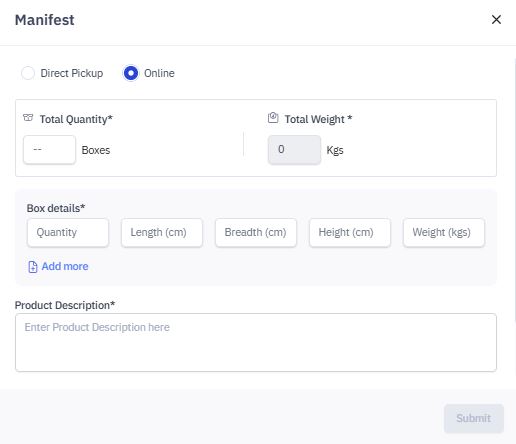
What Happens Next?
Once manifested, the load:
- Moves to the Allocated tab in the Load app, and is assigned to the selected transporter, and
- Shows Requested status in the Indent app, indicating the load has been sent to the transporter for pickup.
The transporter will then accept or reject the request.
To continue from here, follow the steps outlined in the Indent module:
What happens after a transporter accepts the load?